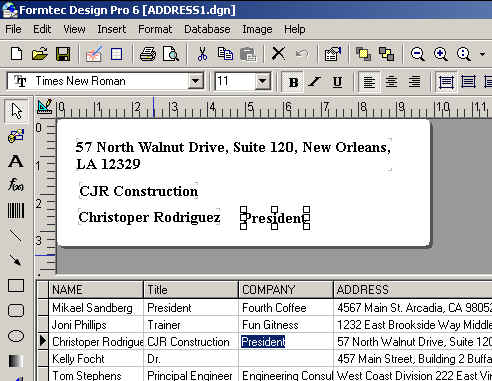
1. When the program is installed, it will be automatically established as Data window. If you deselect it in View > Data Window, then it will disappear from the screen. You can resize the Data Window as you want or you can even correct data in Data Window.
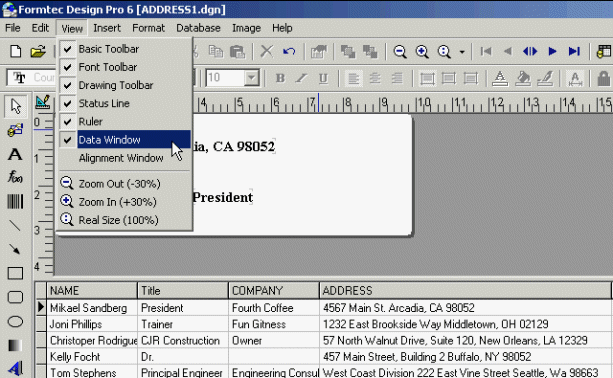
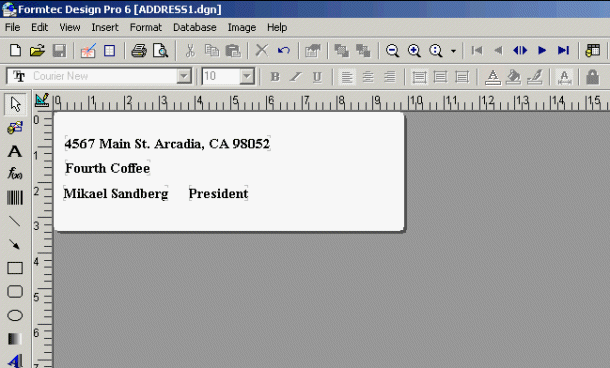
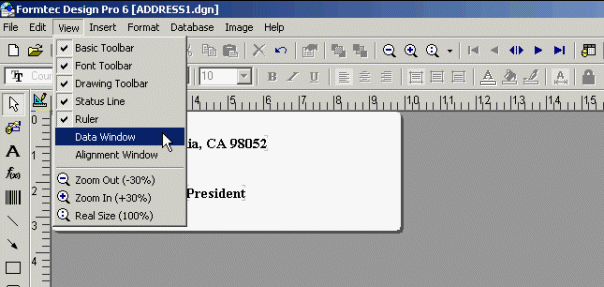
2. If you select it again in View > Data Window, then the Data Window will popup on Screen again.
3. If you select the cell to be corrected from Data Window, then a cursor will be generated to input data. You can correct the cell content, which will apply to the label design instantaneously. An example is shown for the case that Title is changed from Owner to President.
3-1. Click the name of Company. The cell becomes blue and clickers.
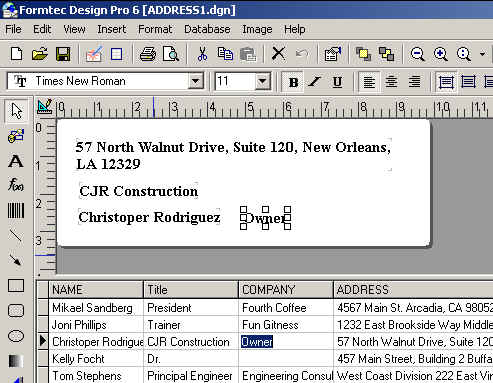
3-2. After inserting data, then enter. The company title will be changed in label.