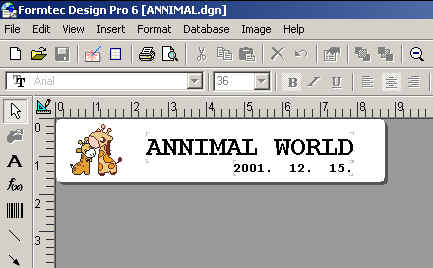
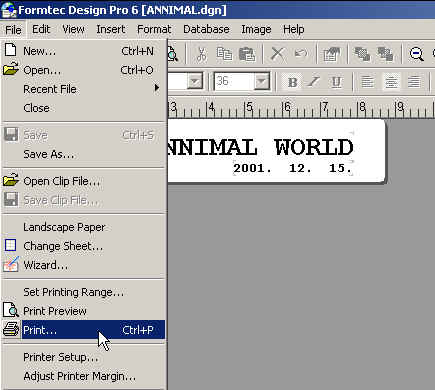
1. After all the operation, select File > Print in menu bar, or click print icon in toolbar.
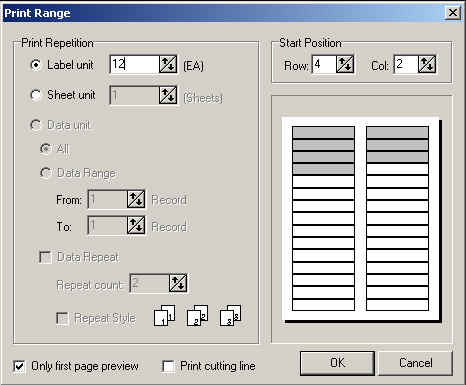
2. After selecting Print, Select Print Range window pops up. If printing same labels repeatly, Input the number desired in Labels Unit textbox in Print Repetition. If printing the same sheets repeatly, Input the number desired in Sheets Unit textbox in Print Repetition. If printing in left-over sheet, click the starting labels on the sheet or Adjust Row and Col of Start Position by clicking arrows in both textbox.
Print cutting line is used for test printing A4 sized sheet. Print cutting line is to print the outline of labels.
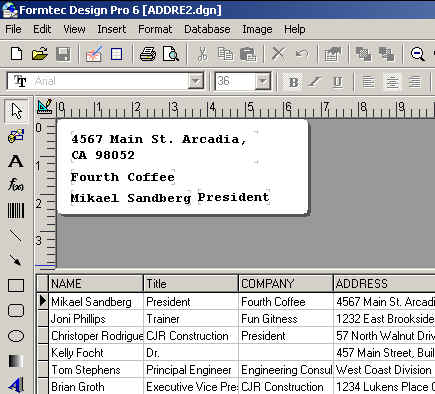
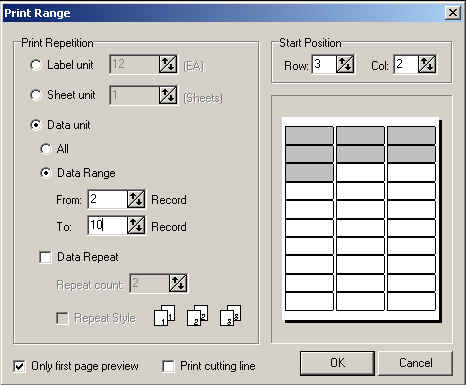
3. Printing the labels connected with the database, Data Unit radio box is used. Data Unit printing is used when printing following data. When printing All data, select All radio box. When printing the data in desired range, select Data Range radio box and input the numbers desired starting record and ending record in From and To textbox. Printing multiple copys of the same labels by data, select Data Repeat checkbox and input repeated number in Repeat Count textbox.
If Only first page preview checkbox is selected, only the first page is showed. If you view all the pages, deselect Only first page preview checkbox. If you print only the part of data, Input the range of data, and If you print multiple sheets of a label, input the number desired in Repeat count textbox.
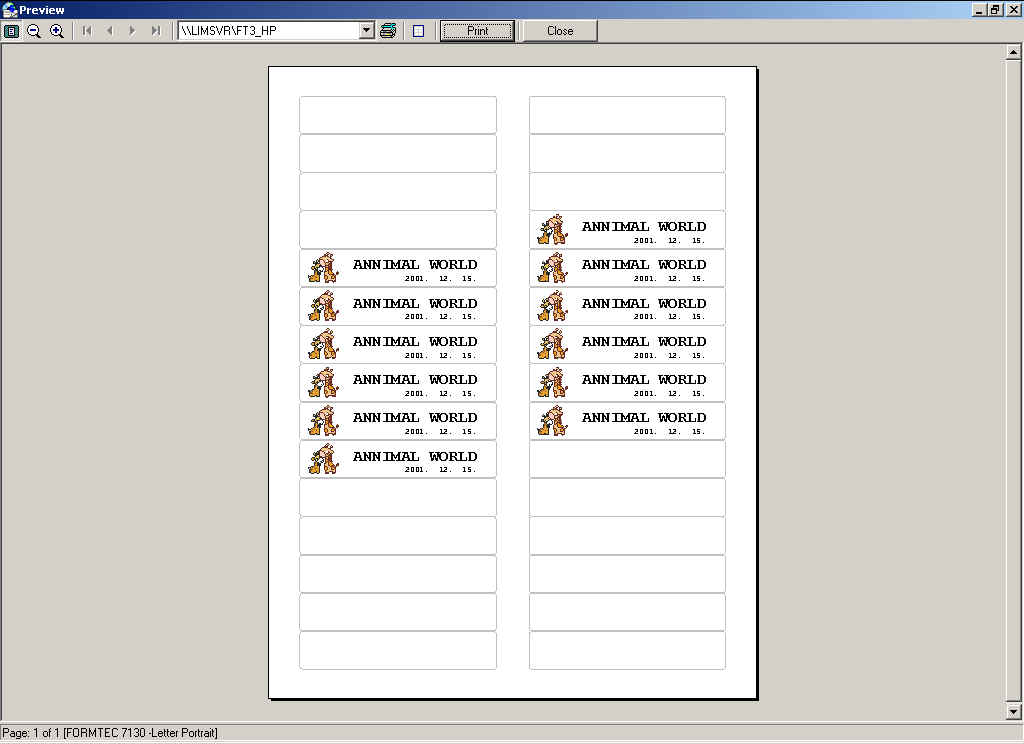
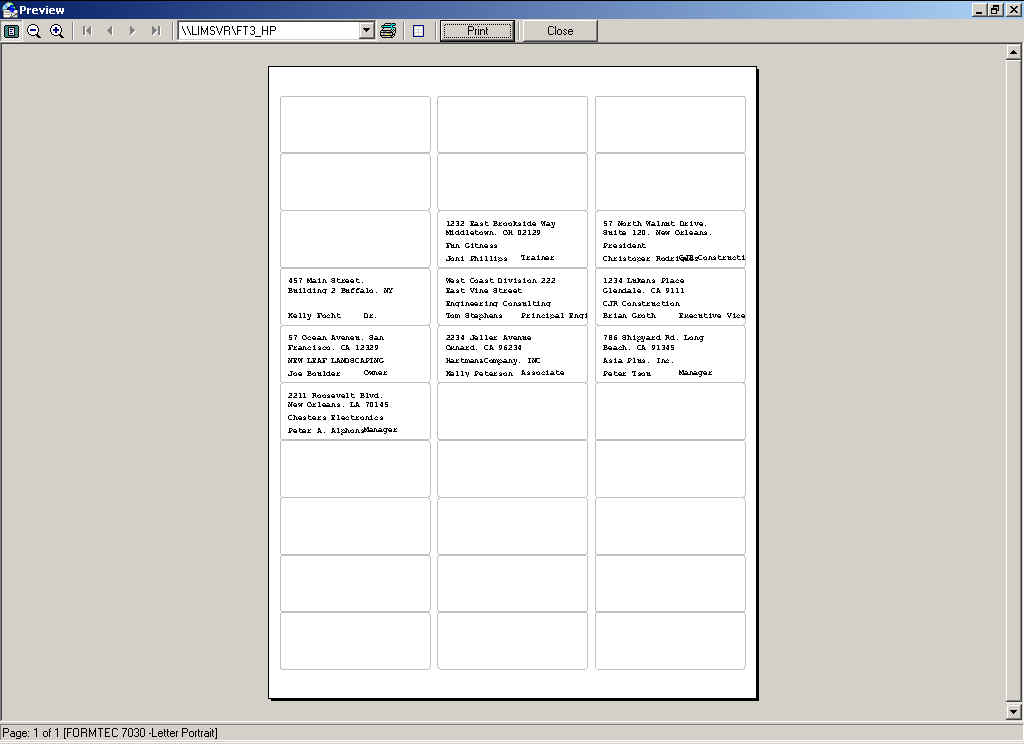
4. After selecting print range, Preview window pops up, and click print icon to print. Also you can change printer setting. If you want to print outline,  click (Print cutting line) button.